AdsPower Configuration Guide
AdsPower is a professional multi-account management tool widely used for social media management and e-commerce operations. This tutorial will guide you on how to configure OkkProxy in AdsPower.
Watch Full Video Tutorial
Prerequisites
- AdsPower client installed (download: https://www.adspower.net/)
- OkkProxy account with available proxy services
- Obtained proxy server address and authentication information
Configuration Steps
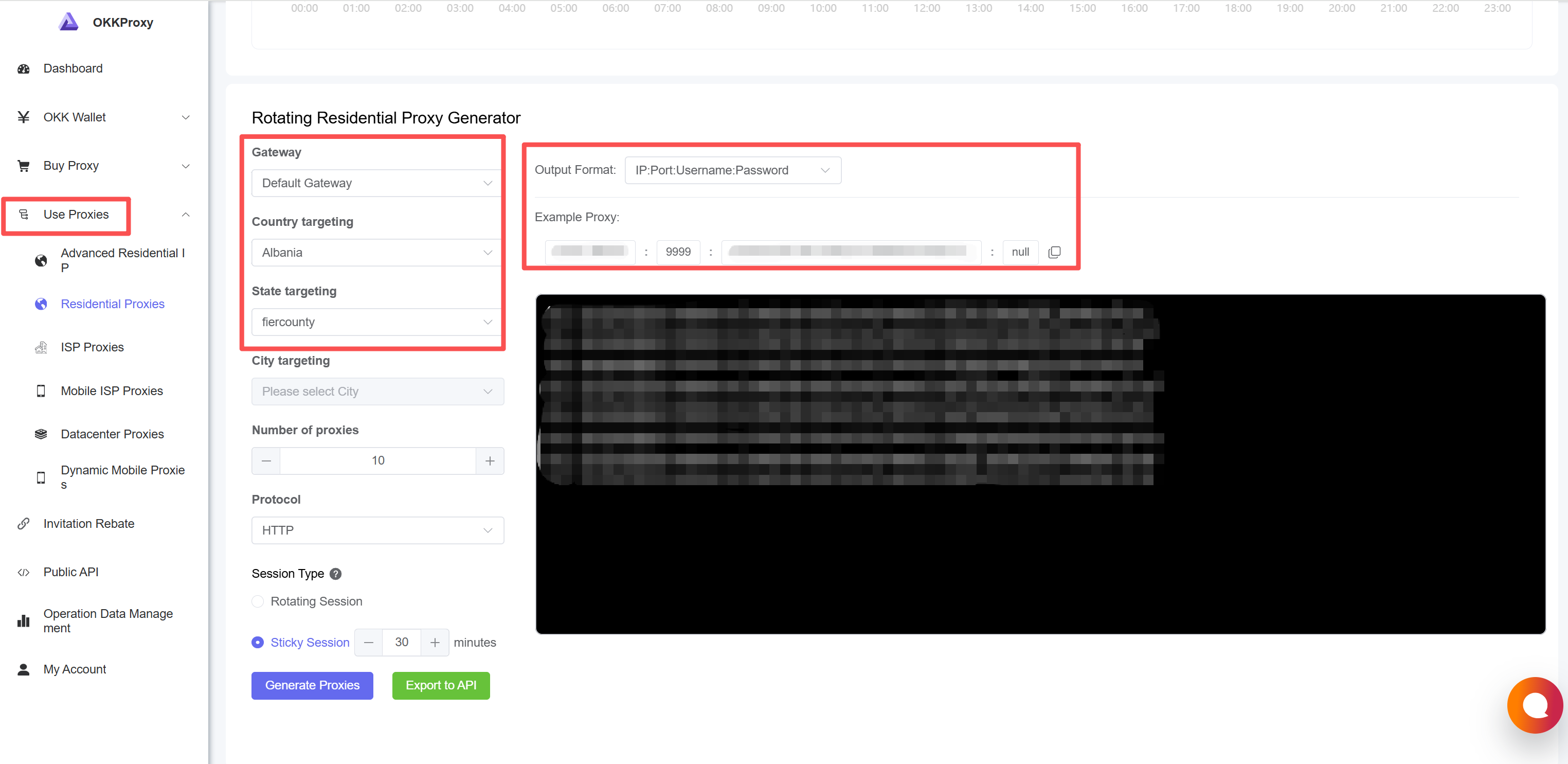
Step 1: Get Proxy Information
- Log in to OkkProxy management panel
- Go to "Proxy Management" page
- Record the following information:
- Proxy server address: Gateway address
- Port number: Port number
- Username: Your username
- Password: Your password
Step 2: Open AdsPower
- Launch AdsPower application
- Log in to your AdsPower account

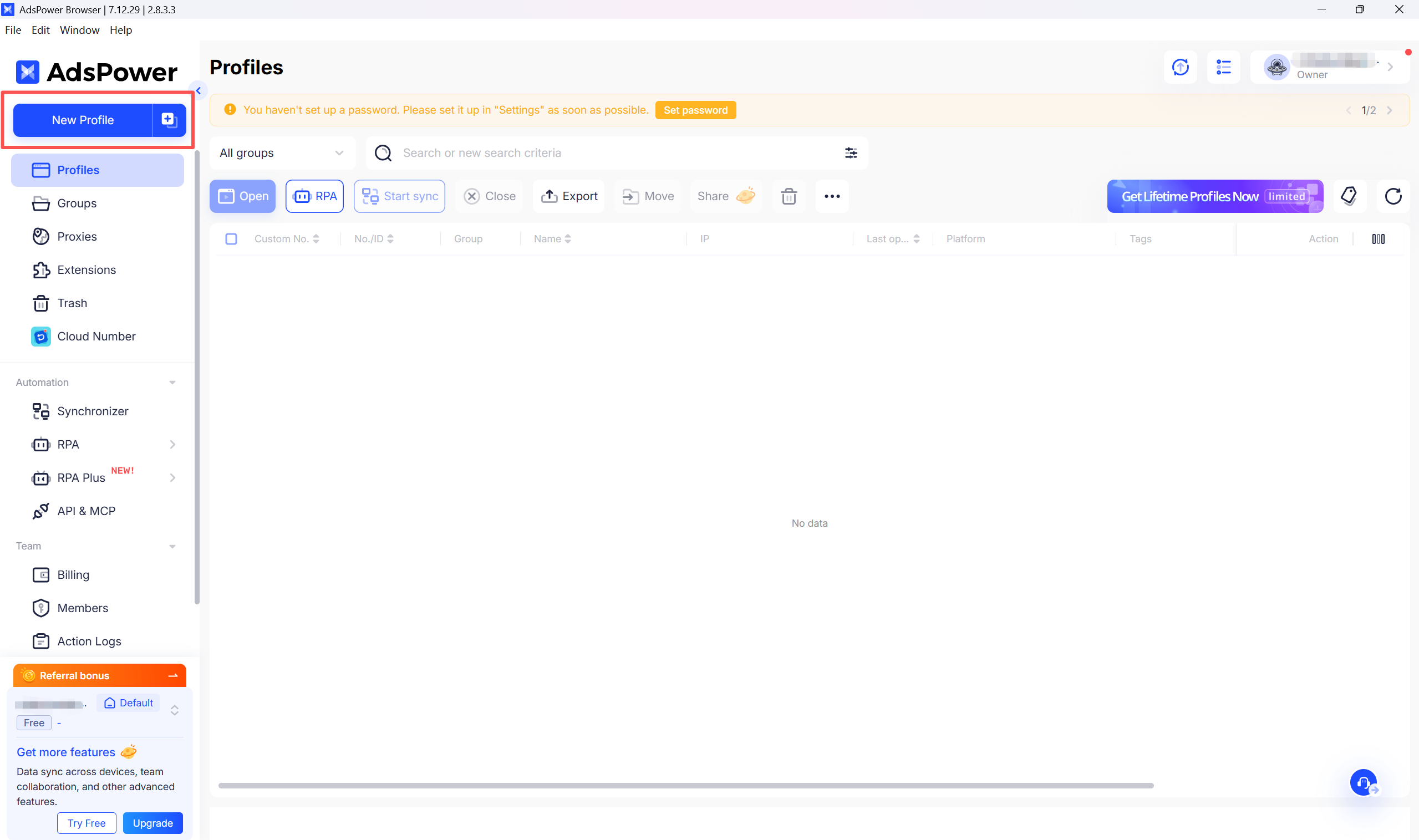
Step 3: Create New Browser Profile
- Click the "New Browser" button on the main interface
- Or edit an existing browser profile
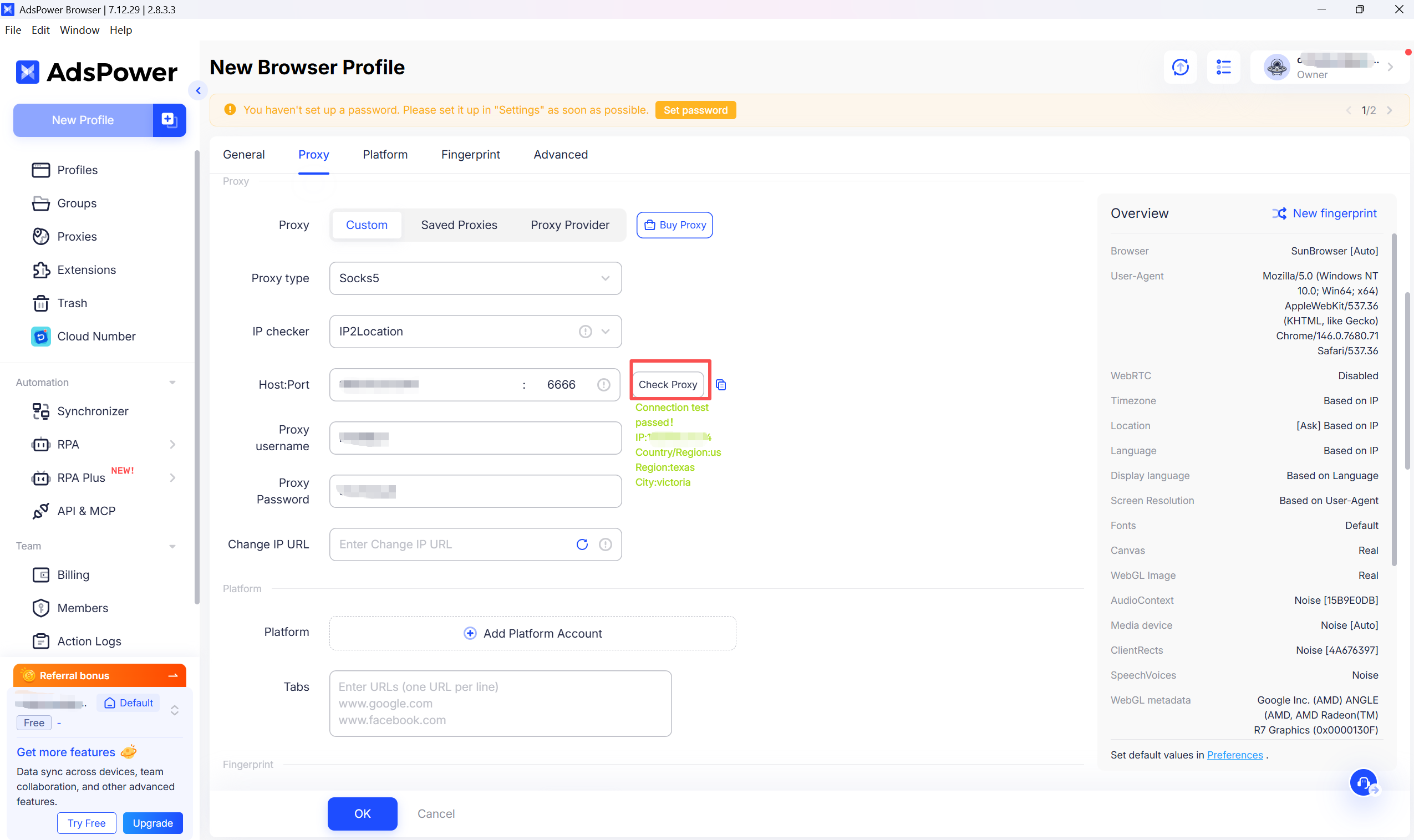
Step 4: Configure Proxy Settings
- In the browser configuration page, find the "Proxy" tab
- Select proxy type:
- HTTP: Suitable for most scenarios
- HTTPS: Requires encrypted connection
- SOCKS5: Requires lower-level protocol support
- Fill in proxy information (example):
Proxy Type: SOCKS5
Proxy Host: proxy.okkproxy.com
Port: xxxx
Username: your_username
Password: your_password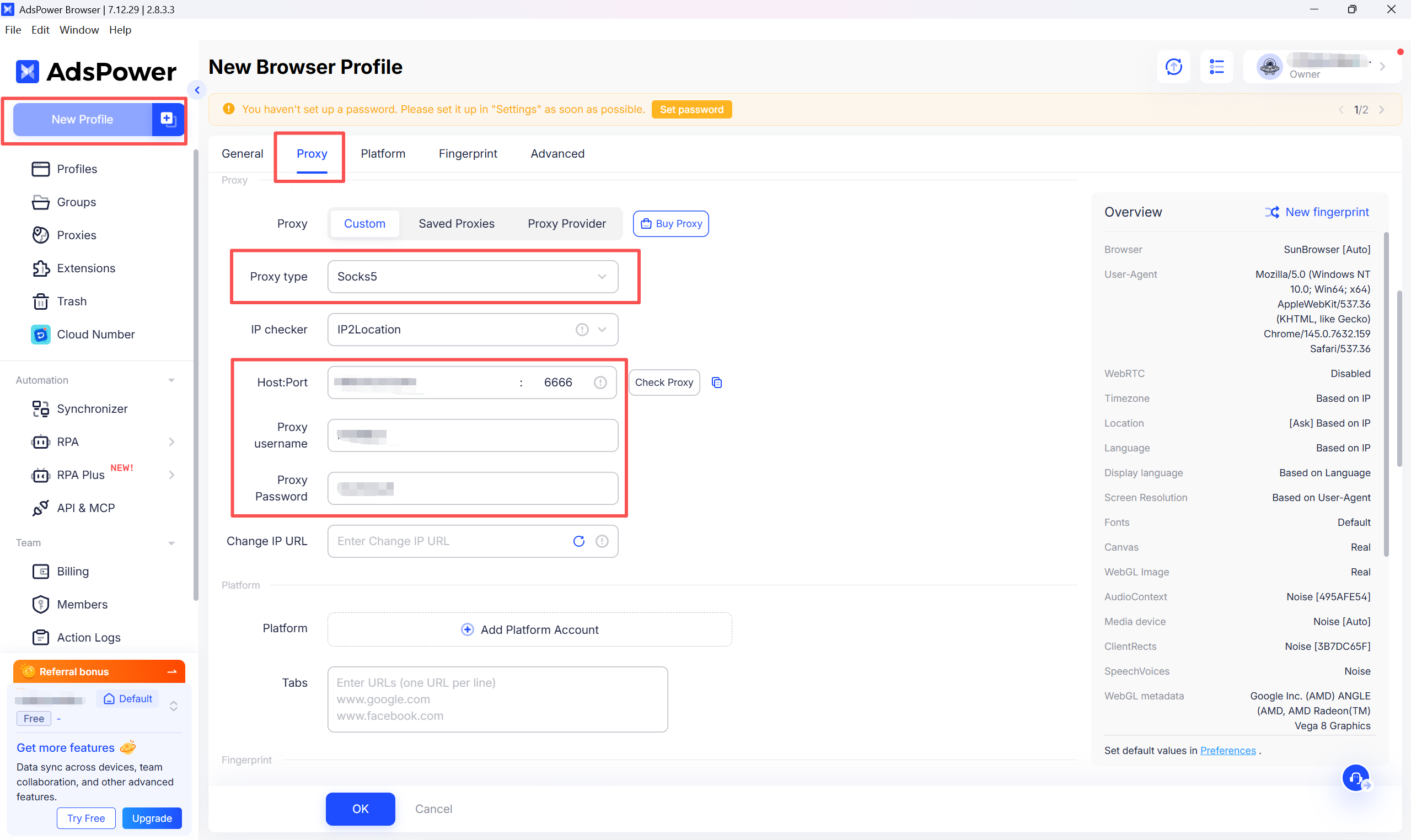
Step 5: Test Proxy Connection
- Click "Test Proxy" or "Test Connection" button
- Wait for test results
- Confirm the displayed IP address and location are correct
Step 6: Save Configuration
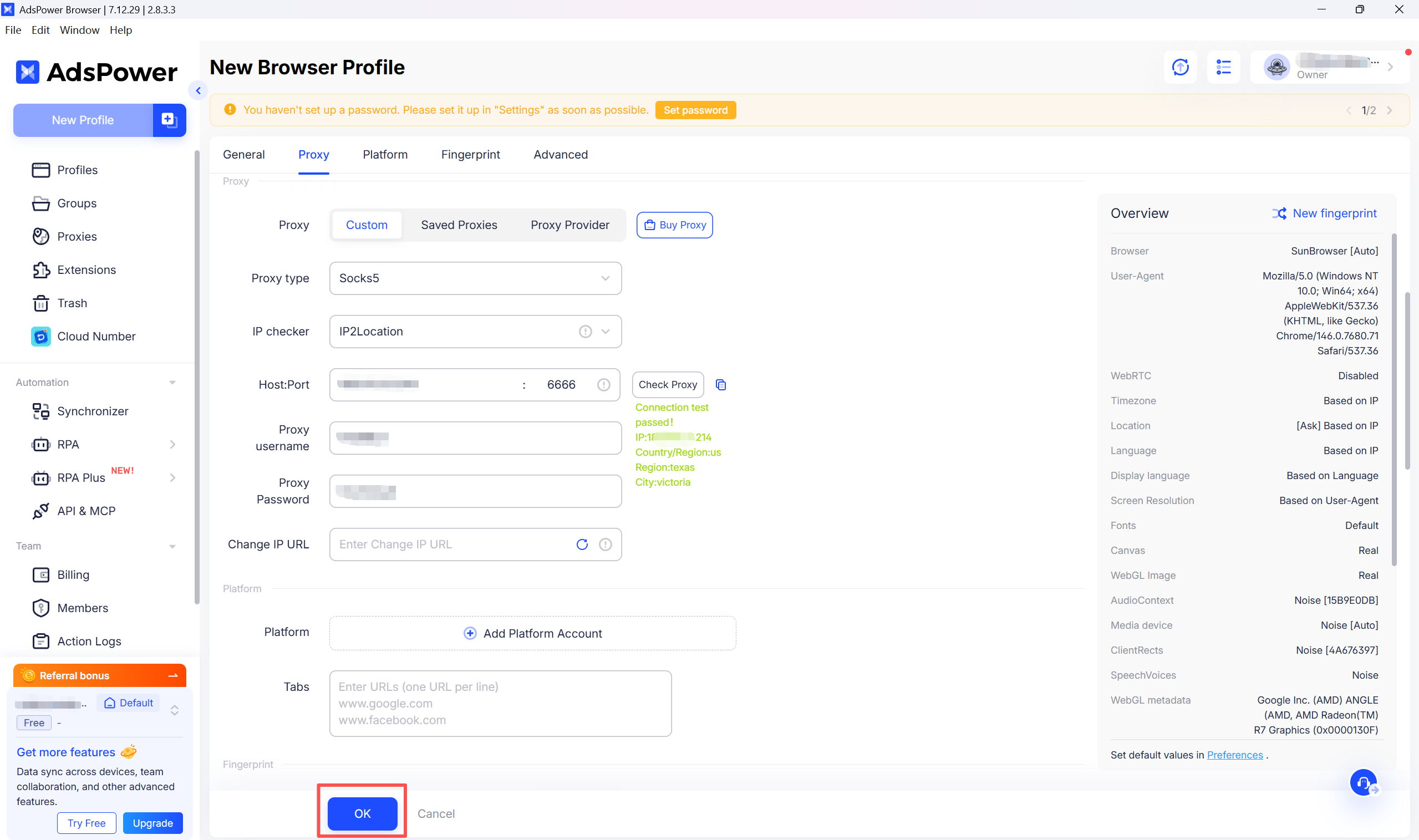
- Confirm all settings are correct
- Click "Save" or "OK" button
- Profile creation completed
Advanced Configuration
Multiple Proxies
If you need to use different proxies for different browser profiles:
- Repeat steps 3–6 above
- Set a different proxy IP for each profile
- This achieves account isolation and prevents association
Proxy Rotation
AdsPower supports proxy rotation:
- In proxy settings, select "Use Proxy API"
- Configure OkkProxy's API endpoint (contact support to obtain)
- Set rotation rules:
- Rotate by time interval
- Rotate by number of requests
- Rotate manually
Fingerprint Configuration
To improve anonymity, it is recommended to configure the following fingerprint settings:
- Canvas Fingerprint: Enable Canvas noise
- WebGL Fingerprint: Enable WebGL randomization
- Timezone: Set according to the proxy IP's region
- Language: Match the target region's language
- User-Agent: Use a real browser identifier
Use Cases
Scenario 1: Facebook Ad Management
- Create multiple browser profiles
- Use proxy IPs from different countries for each profile
- Configure the corresponding country's language and timezone
- Manage advertising accounts across different regions
Scenario 2: Amazon Multi-Store Operations
- Create an independent profile for each Amazon store
- Use a proxy IP from the store's registered country
- Set matching browser fingerprints
- Avoid store association risks
Scenario 3: TikTok Account Management
- Choose proxy regions based on your target market
- Configure localized device information
- Use independent proxy IPs
- Improve account security
FAQ
Q1: What should I do if the proxy connection fails?
Check the following:
- Confirm the proxy address and port are correct
- Verify the username and password are accurate
- Check if your account balance is sufficient
- Confirm IP whitelist settings (if enabled)
Solutions:
- Re-copy proxy information from the dashboard
- Remove any extra spaces
- Try using a different port
- Contact OkkProxy support to check account status
Q2: Why is my proxy speed slow?
Possible causes:
- The selected proxy node is far from the target website
- Network congestion during peak hours
- Too many concurrent connections
Optimization tips:
- Select a proxy node closer to the target region
- Upgrade to a higher-tier plan
- Reduce the number of browser windows open at the same time
Q3: How to verify if the proxy is working correctly?
- Visit https://whoer.net in AdsPower browser
- Check if the displayed IP address is the proxy IP
- Confirm the geolocation matches expectations
- Check if DNS and WebRTC are leaking the real IP
Q4: Can I use free proxies in AdsPower?
While technically possible, free proxies are not recommended:
- Free proxies are usually unstable
- Slow speeds with low success rates
- Security risks involved
- May be blocked by target websites
We recommend using professional proxy services like OkkProxy.
Q5: Why is my browser not working even after configuring a proxy IP in AdsPower?
In mainland China's network environment, configuring a proxy IP alone is usually not enough to access external websites. A local proxy tool ("ladder") is required for traffic forwarding.
Please make sure all of the following conditions are met:
- A local proxy tool is enabled (such as Clash or V2Ray)
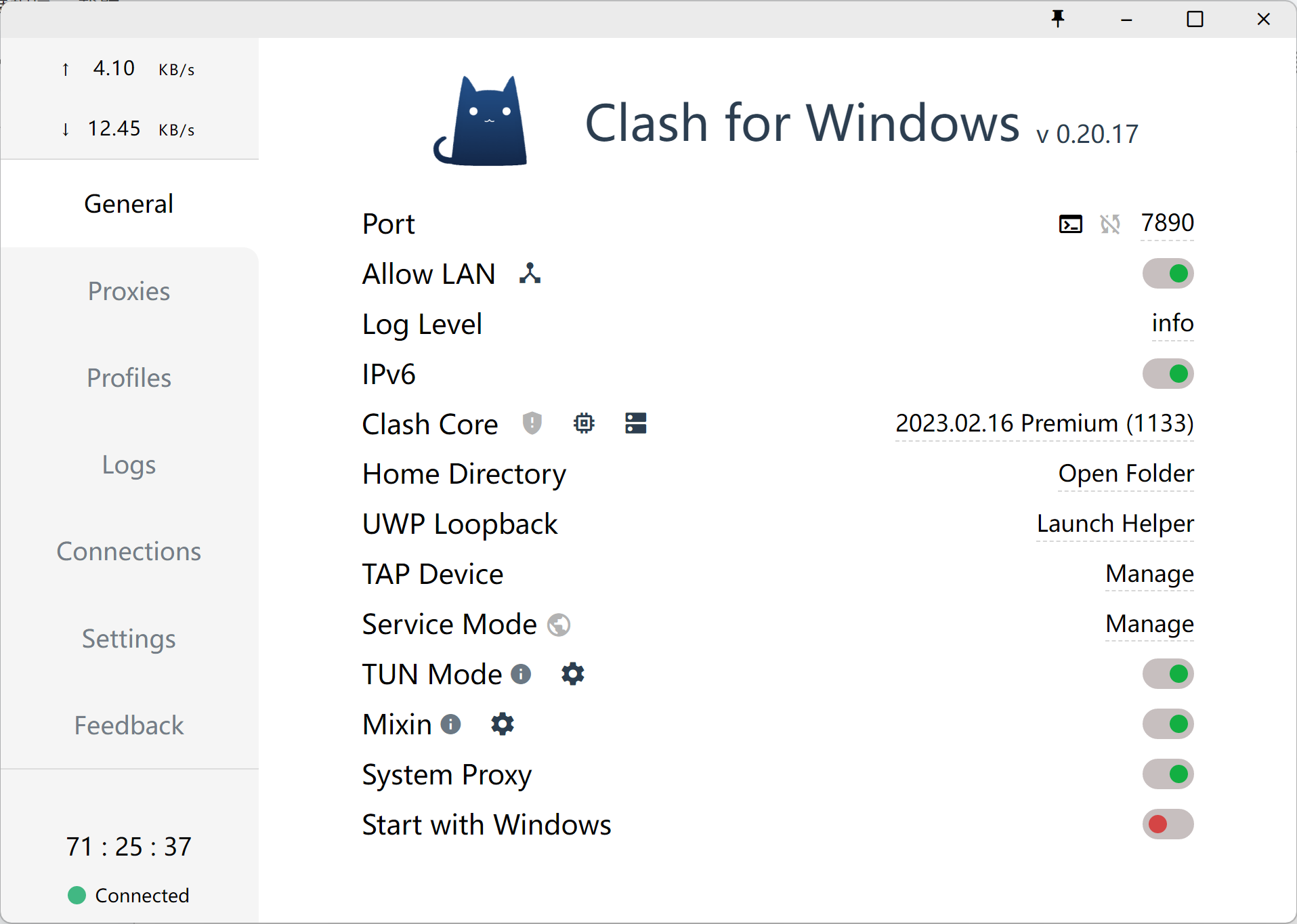
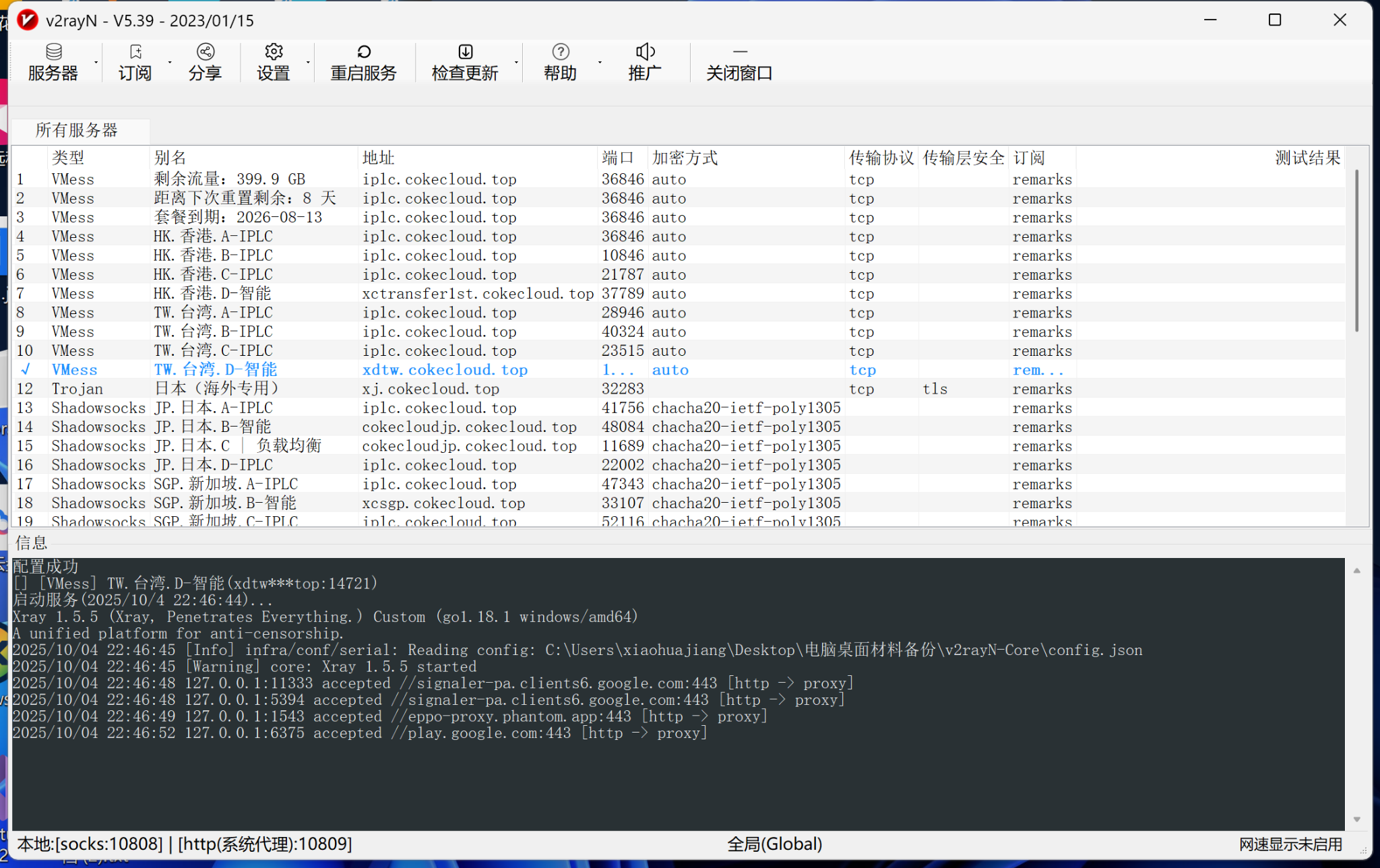
- The proxy tool is in a "connected" state
- AdsPower is correctly using the system proxy
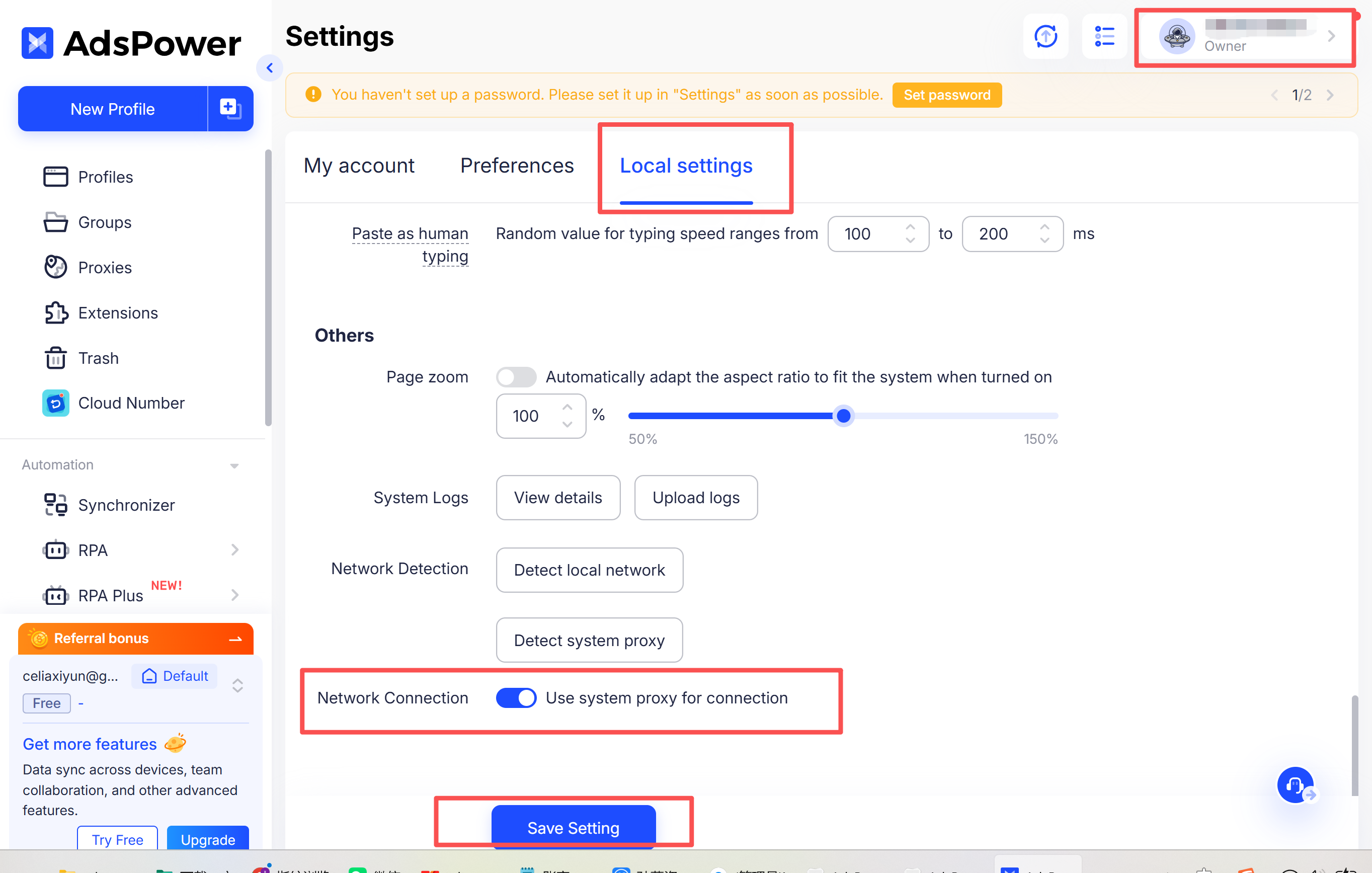
Q6: What key settings need to be enabled in AdsPower?
When using AdsPower, you must enable the system proxy to ensure proper traffic routing.
Example path: Settings → Local Settings → Use System Proxy