
DuoPlus Cloud Mobile Configuration Guide
OkkProxy provides residential proxies, mobile proxies, ISP proxies, and datacenter proxies covering multiple countries and regions worldwide. They can be used for social media management, e-commerce management, market research, data collection, automation, and other business scenarios.
This tutorial uses DuoPlus Cloud Phones as an example to show you how to obtain OkkProxy proxy information and configure a SOCKS5 proxy in DuoPlus, helping you quickly establish an independent and secure network environment for your cloud phone.
1. OkkProxy Proxy Types
OkkProxy provides the following proxy types:
- Rotating Residential Proxies
- Static ISP Proxies
- Rotating Mobile Proxies
- Static Mobile Proxies
- Rotating Datacenter Proxies
- Unlimited Proxies
2. Get Your OkkProxy Proxy Information
2.1 Register and Purchase
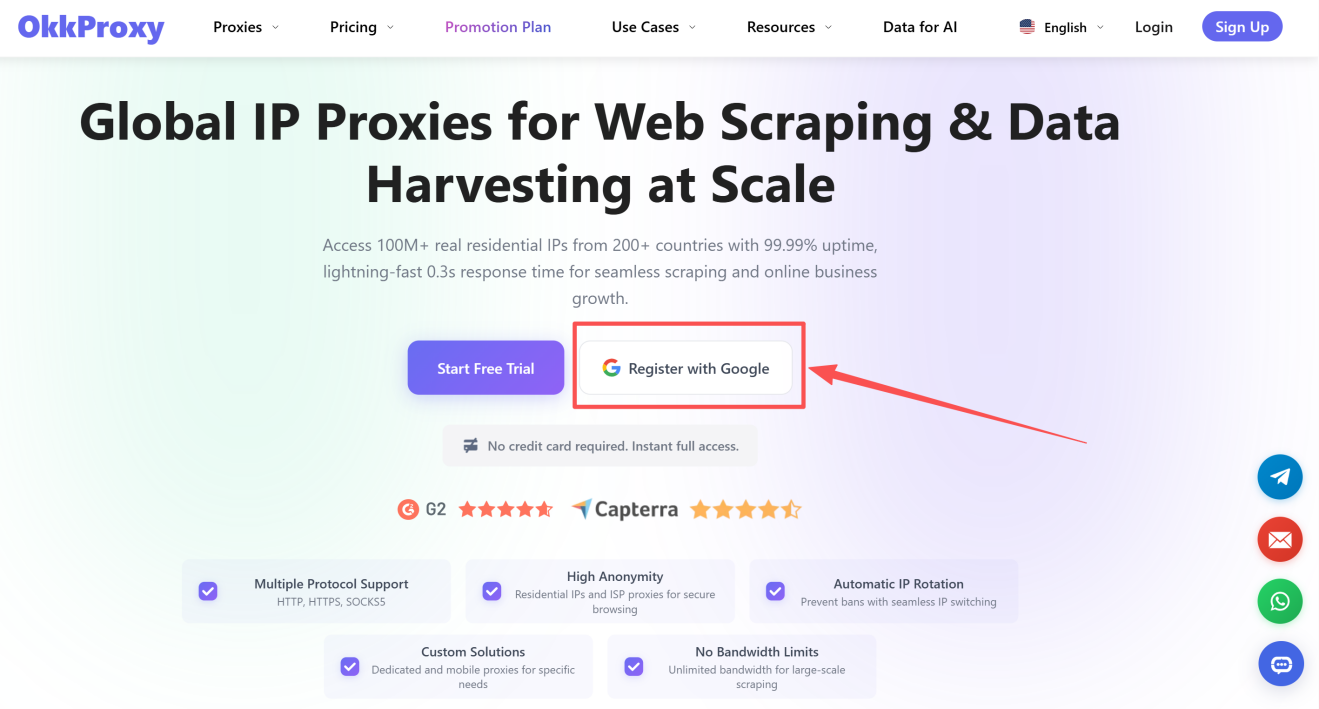
- Visit the OkkProxy website and register an account.
- Log in to the dashboard and go to the Buy Proxy page.
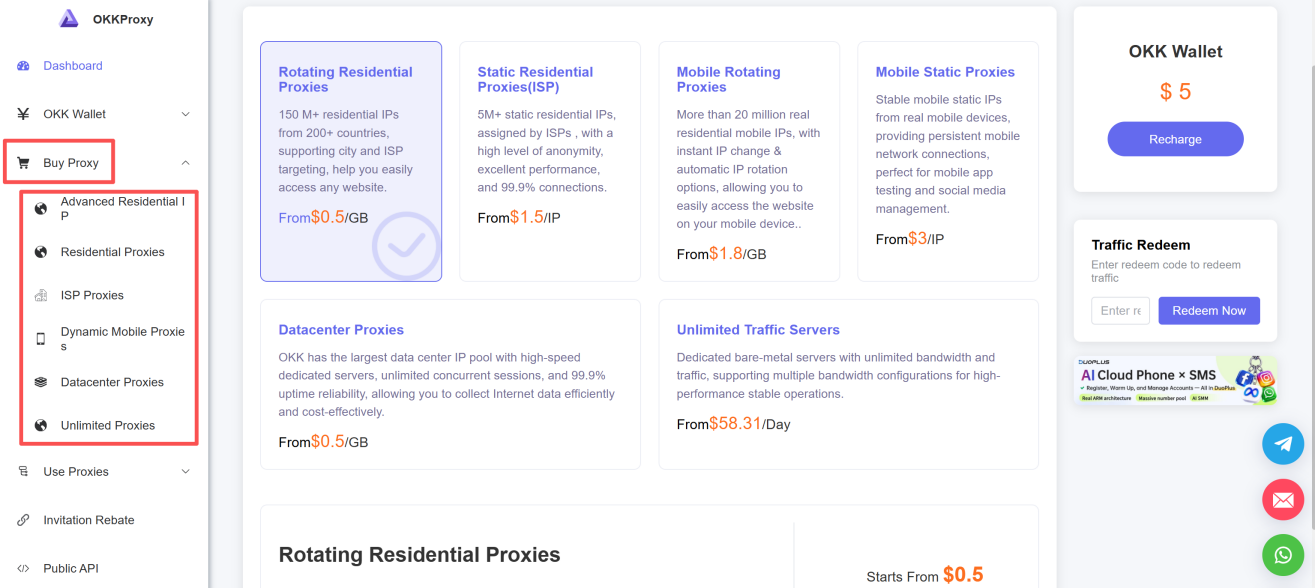
- Select the proxy type and configure the country, region, quantity, and plan according to your needs. Then complete your purchase.
2.2 Get Static Proxy Information
Static proxies are suitable for scenarios that require a fixed IP address. After purchase, you will generally receive a set of connection details that remain available for an extended period.
To obtain your static proxy information:
- Log in to the OkkProxy dashboard.
- Go to the Use Proxies page.
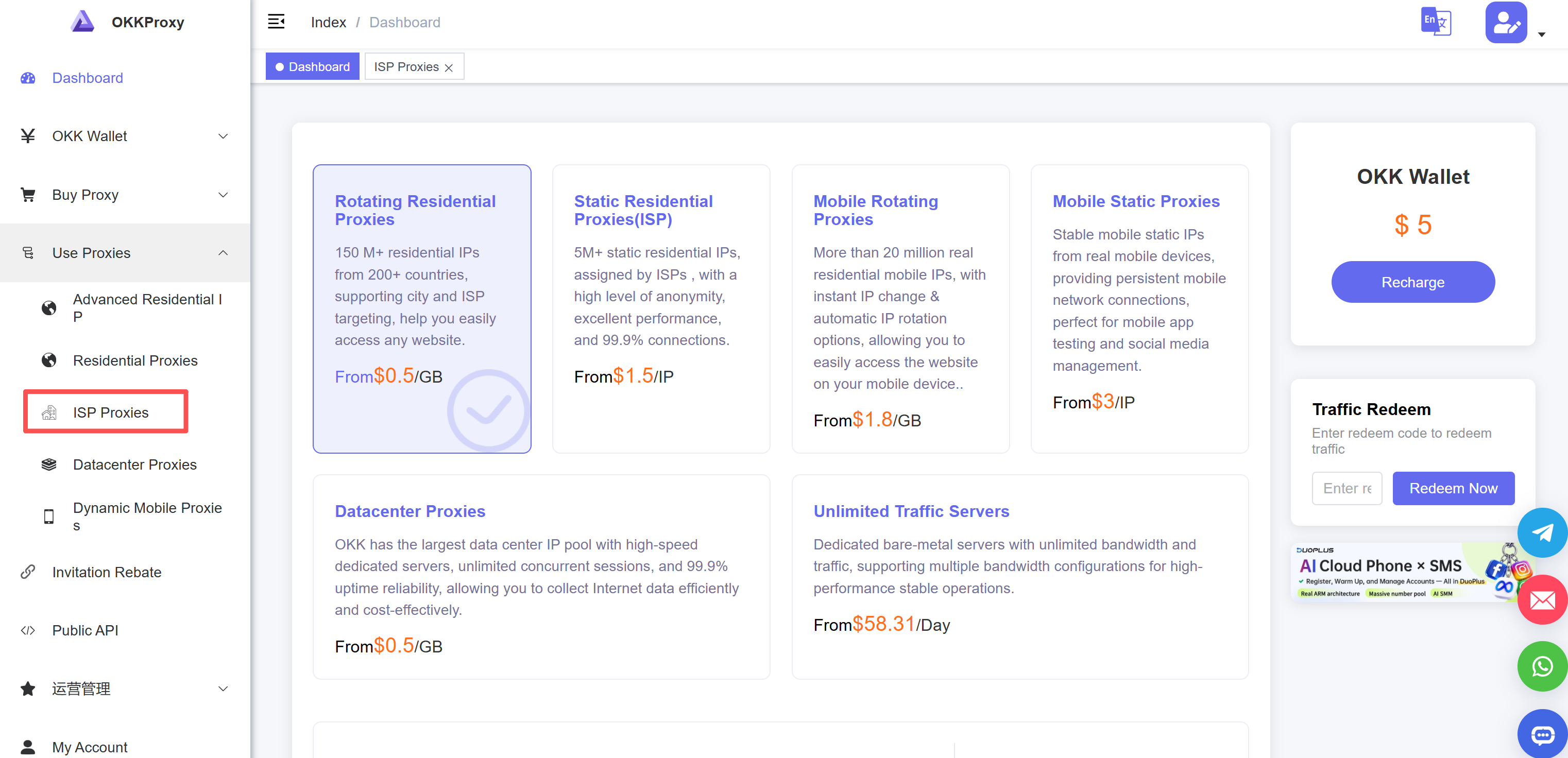
- Find the corresponding static proxy plan.
For static residential proxies, you can obtain the following information:
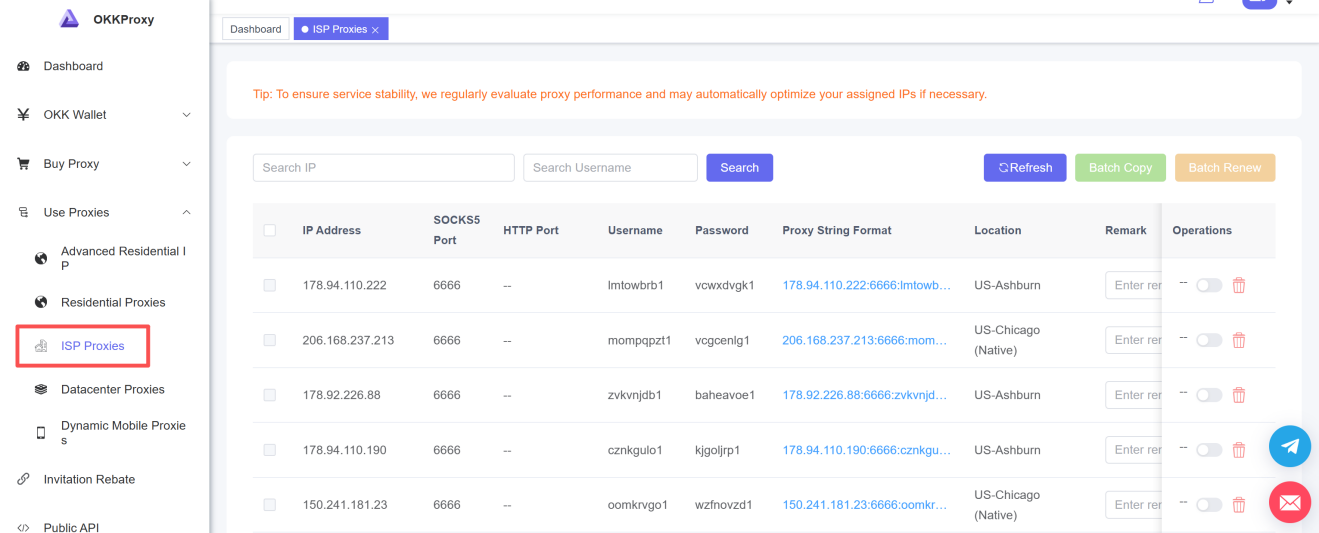
- Fixed IP address
- SOCKS5 port / HTTP port
- Username
- Password
- Proxy format
- IP location
- IP expiration date
2.3 Get Rotating Proxy Information
Rotating proxies are suitable for scenarios that require automatic IP rotation. They are typically used through a gateway address + authentication information, rather than through a single fixed IP address.
To obtain your rotating proxy information:
- Log in to the OkkProxy dashboard.
- Go to the Use Proxies product page.
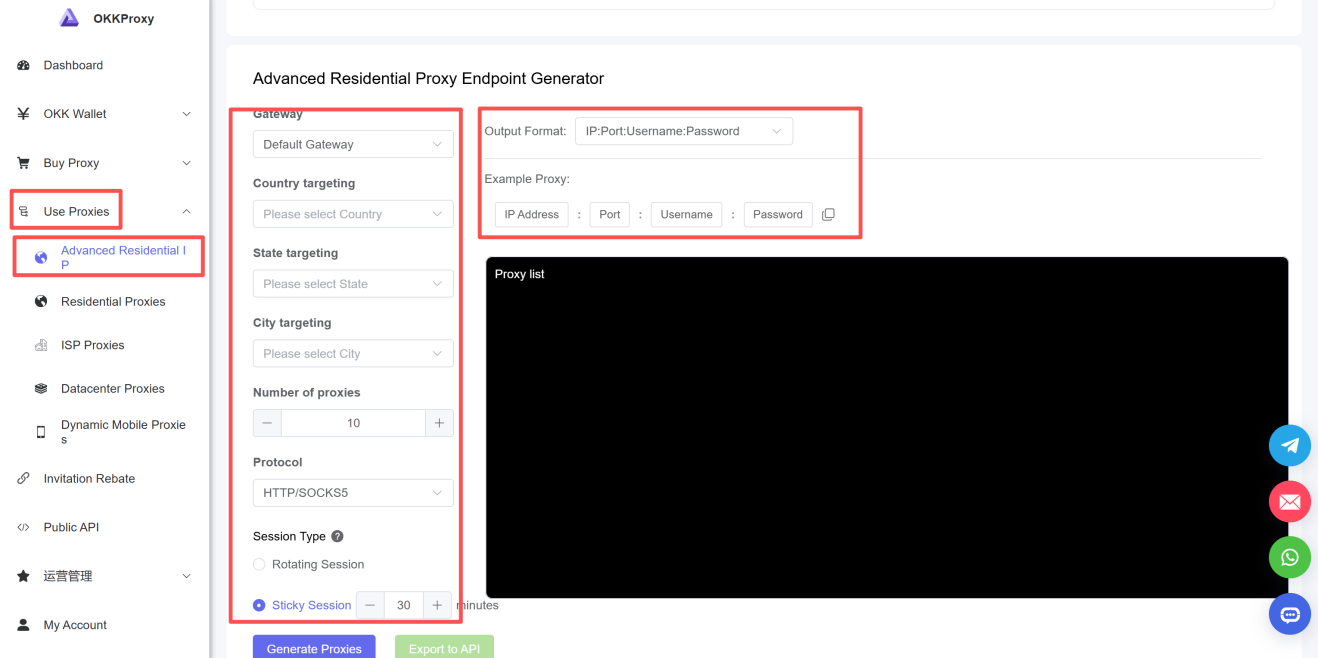
- Select the corresponding rotating proxy plan, such as Rotating Residential, Rotating Mobile, or Rotating Datacenter Proxies.
- Obtain the rotating proxy connection details.
For example, for Advanced Rotating Residential Proxies, you can obtain:
- Rotating gateway address
- Port
- Username
- Password
Once you have obtained your proxy information, you can proceed to configure the proxy in DuoPlus Cloud Phone.
3. DuoPlus Cloud Phone Configuration
(Note: Currently, DuoPlus Cloud Mobile only supports Socks5 type proxy configuration and supports proxies in more than 150 countries and regions worldwide)
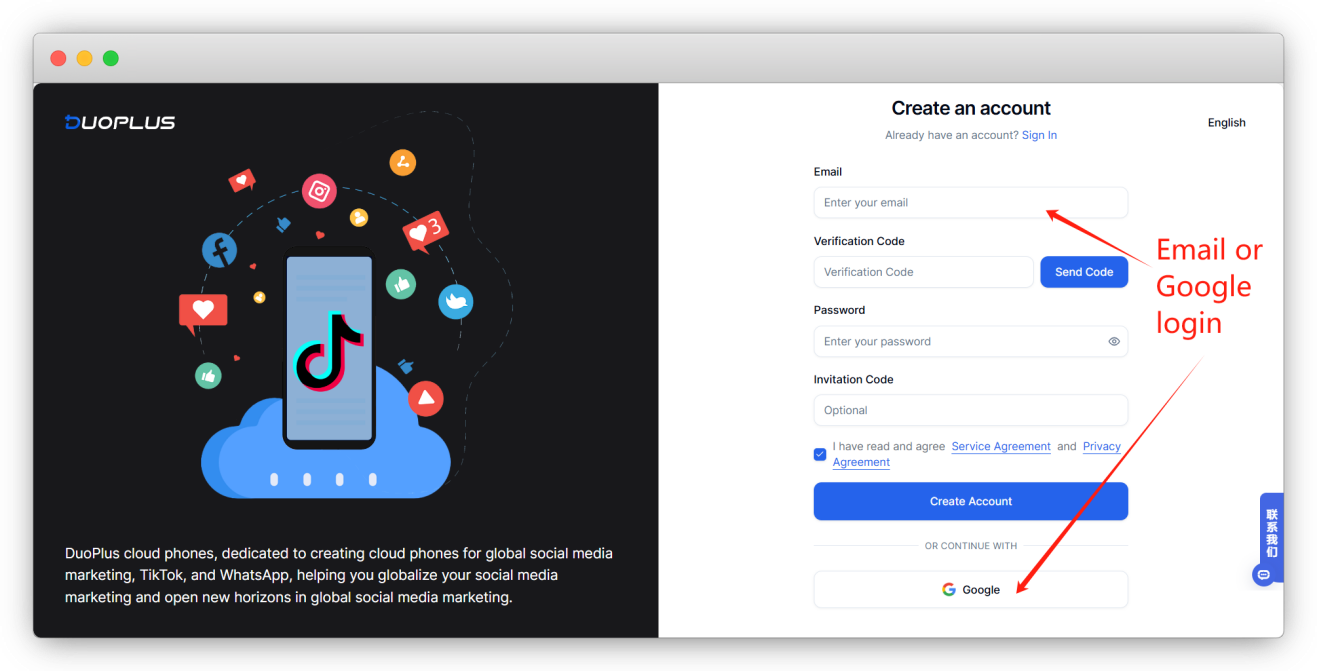
3.1 DuoPlus Registration and Login
Log in to the official DuoPlus website and register an account.
3.2 Create a Cloud Phone
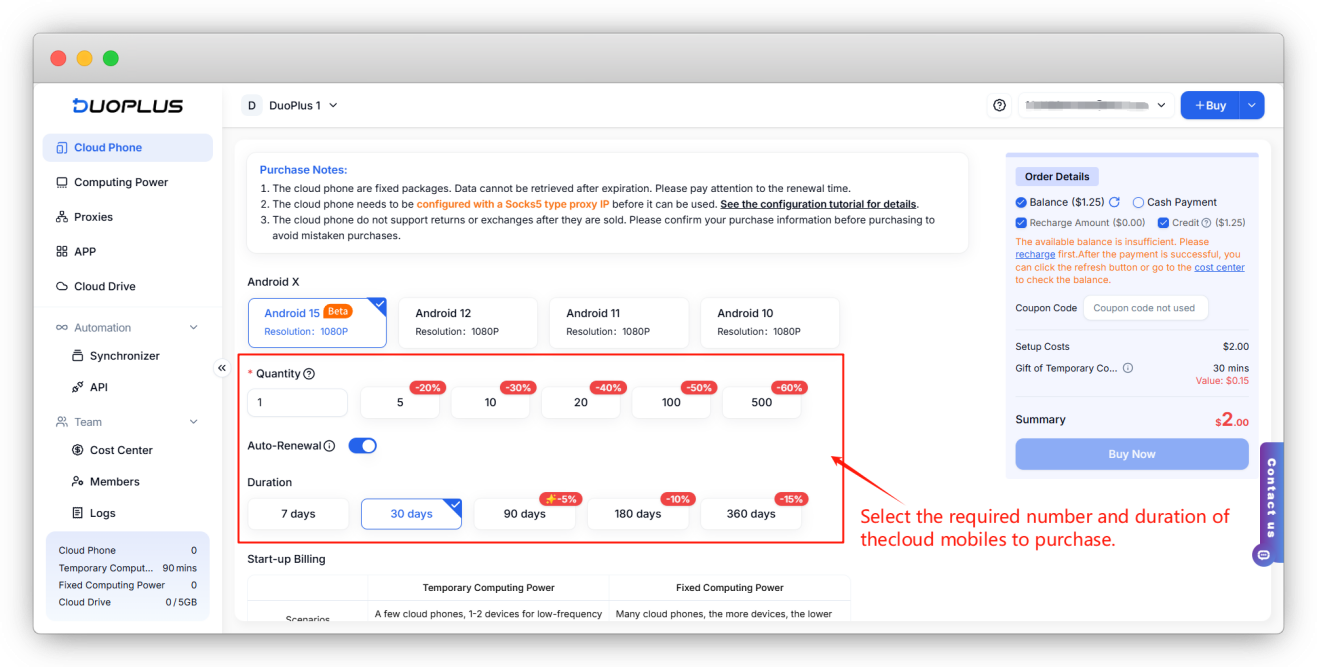
- After registering your account, enter the DuoPlus management interface and start creating a cloud mobile. Click on "Try Now".
- Enter the interface to purchase cloud mobiles, and select the number and duration of cloud mobiles needed based on your own requirements.
(Note: DuoPlus cloud mobiles require users to configure Sock type proxy IPs to use.)
Payment methods for cloud mobiles are divided into balance payment and cash payment.
- Balance payment: The cost of purchase will be deducted from the balance without any transaction fees. A transaction fee will be charged if the single recharge amount is less than 100, and the temporary computing power boot-up fee will also be deducted from the balance.
- Cash payment: Currently supports WeChat, Alipay, and PayPal. A transaction fee will be charged if the single payment amount is less than 100.
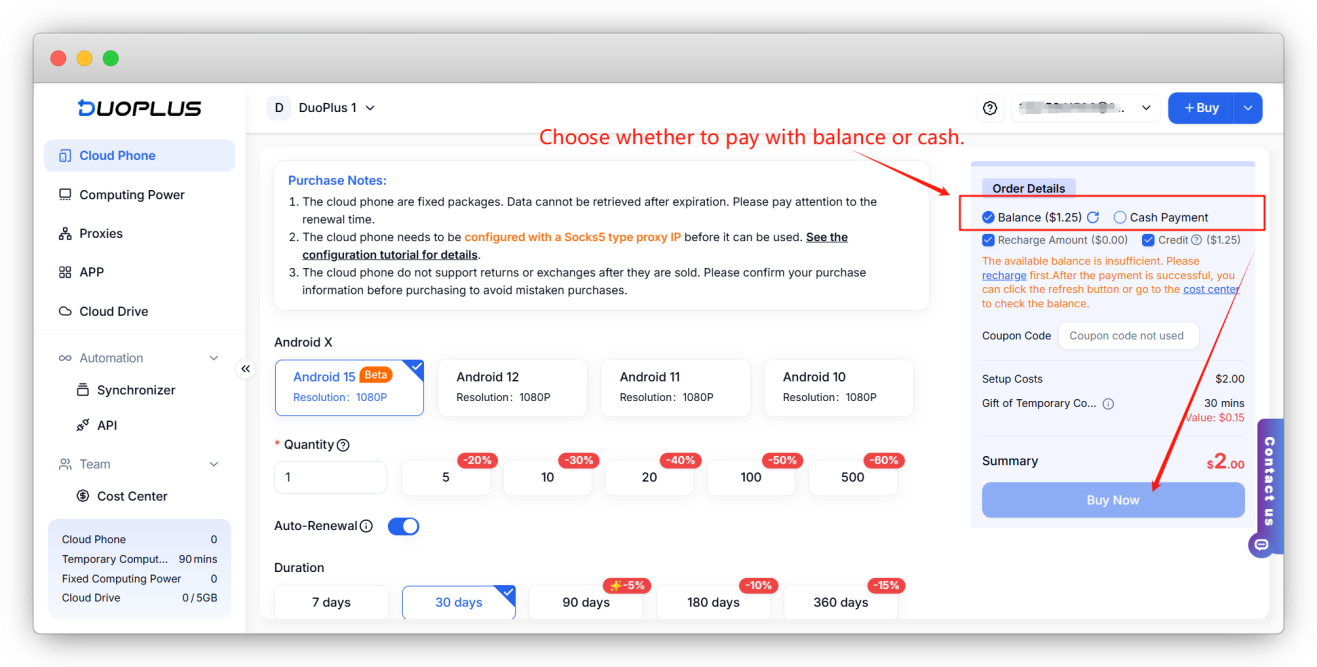
After selecting the duration and payment method for the cloud mobile, click "Buy Now" at the bottom right corner, and then you will enter the proxy IP configuration interface (if it does not redirect to the proxy configuration page, you can access the proxy configuration page by clicking in the "Cloud Mobile" list).
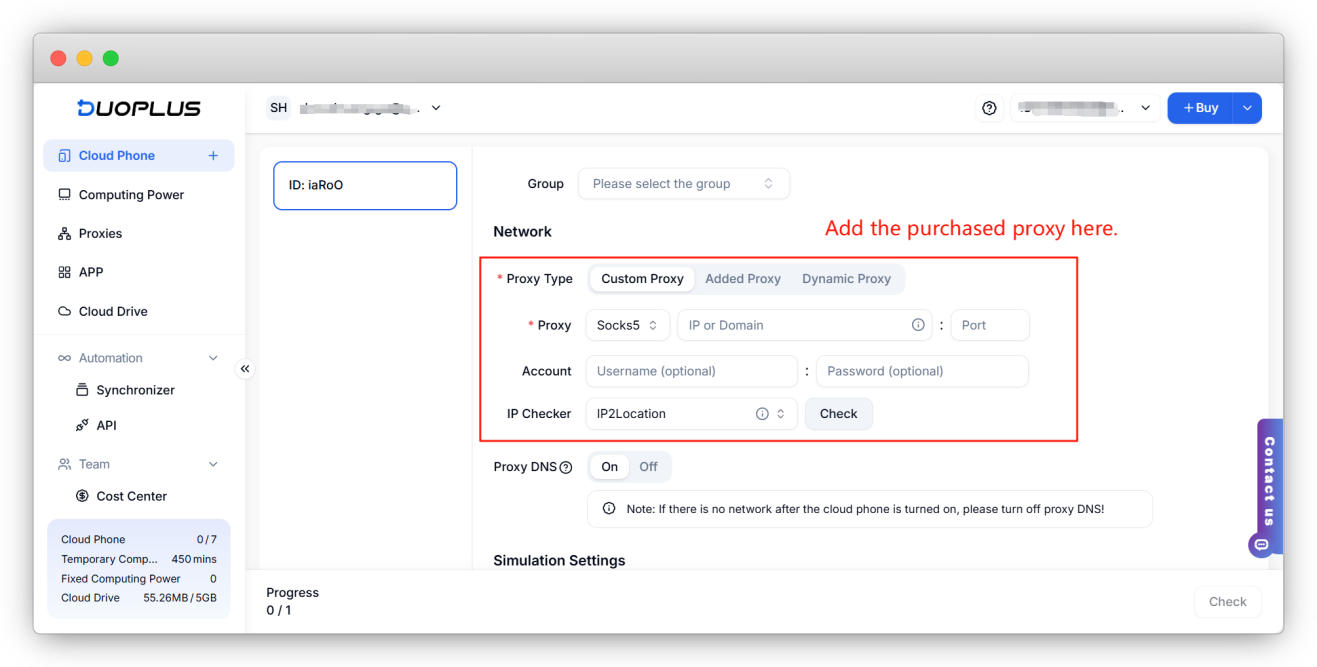
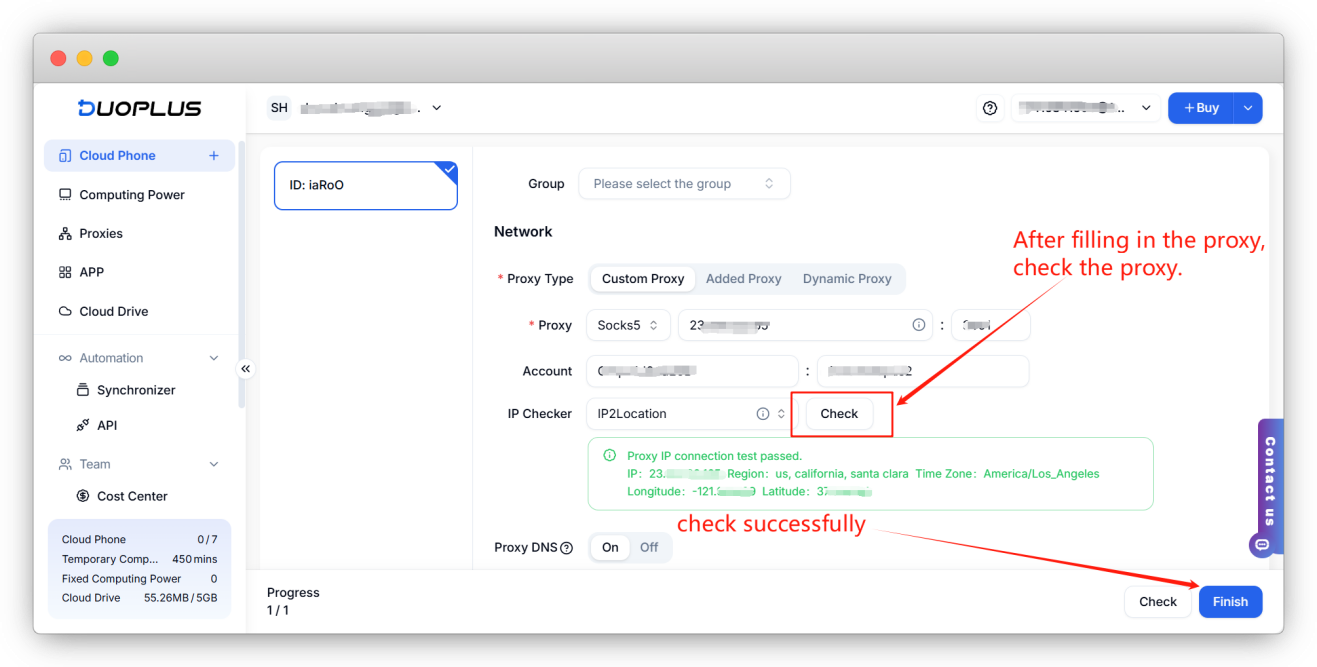
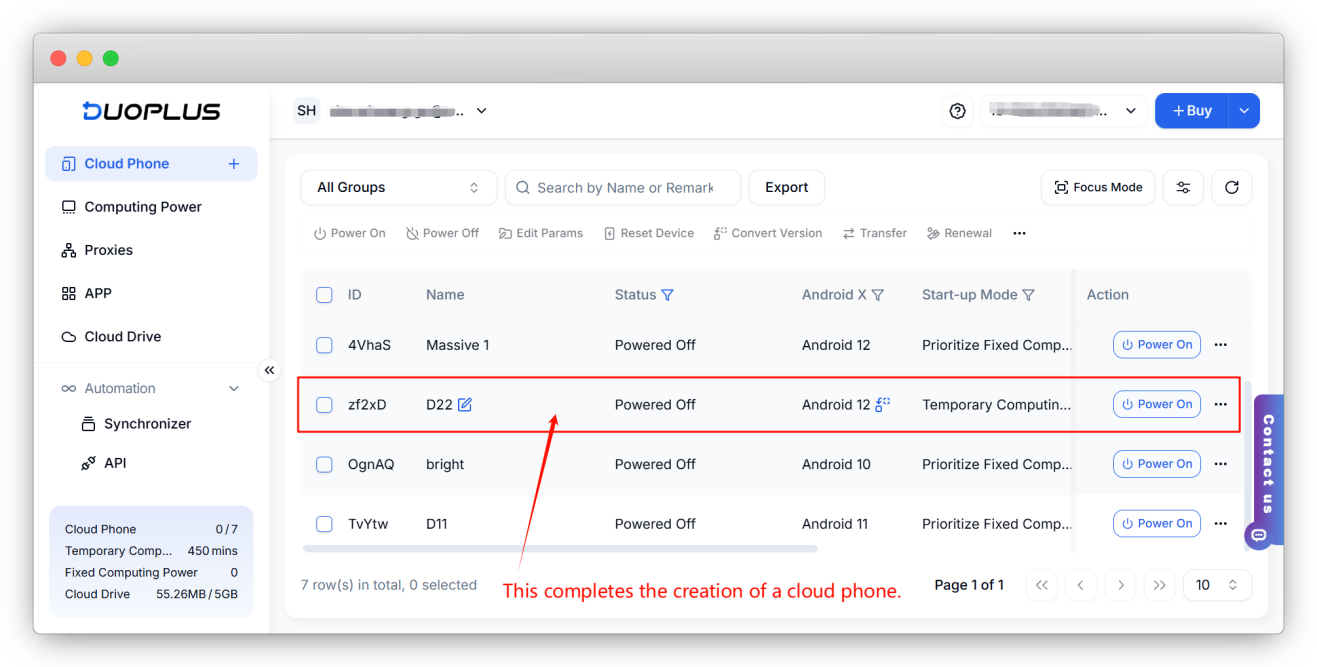
- Click on "Add Custom Proxy" in the proxy configuration interface. Begin configuring the proxy by copying the OkkProxy proxy IP, host, port, username, and password purchased in the second step, and paste them into the "IP or Domain" box for automatic recognition. Then click to check the proxy. Once the proxy check is successful, click to complete the configuration, thus creating a cloud mobile.
- If the proxy check is unsuccessful, please contact customer service for troubleshooting.
4. Starting and Using DuoPlus Cloud Phone
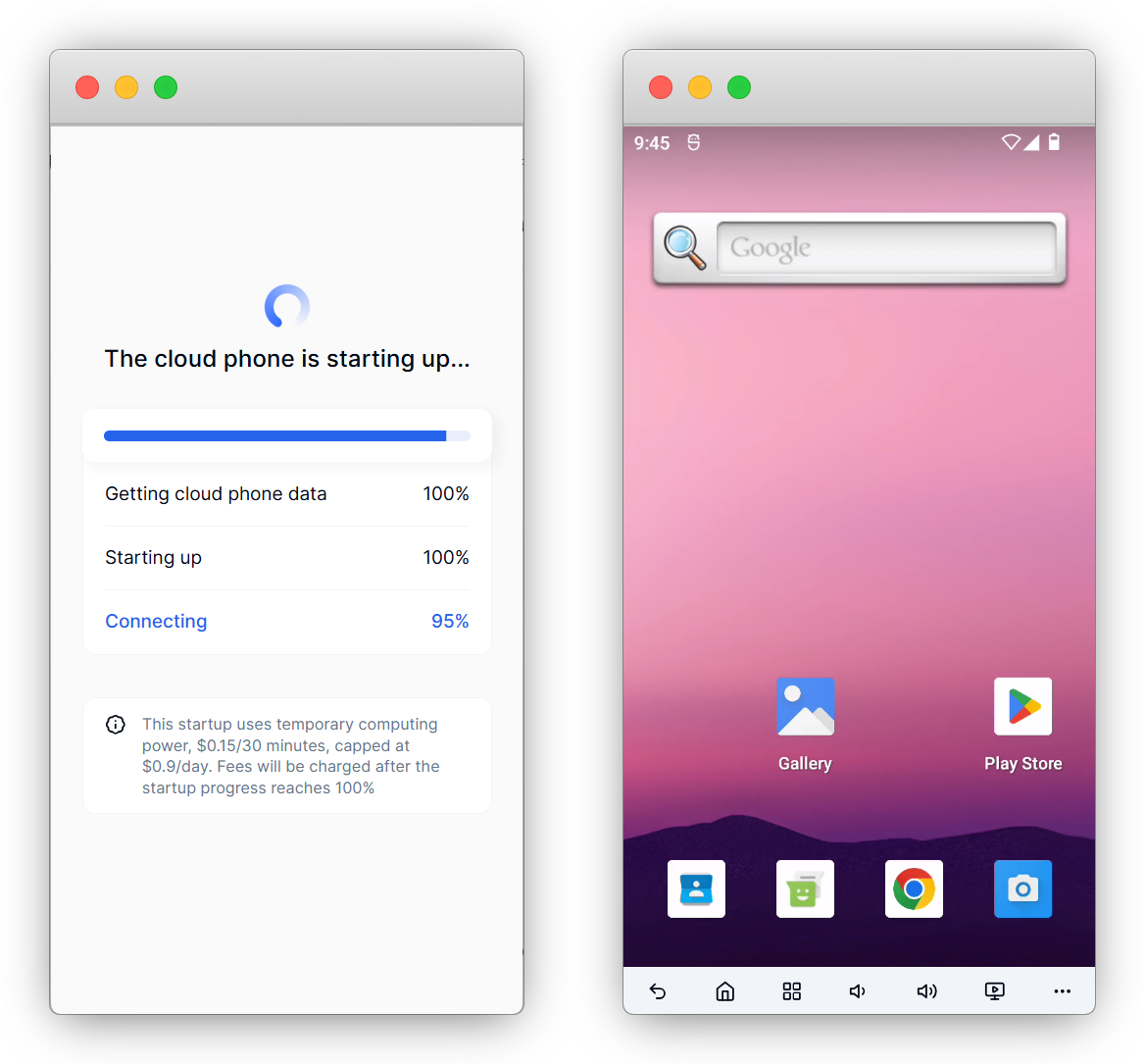
Once the cloud phone is created, it can be started and used normally. Users can choose the billing mode according to their needs, either pay-as-you-go (with sufficient balance) or purchase fixed computing power (available to start at any time). Click connect to start the cloud phone.
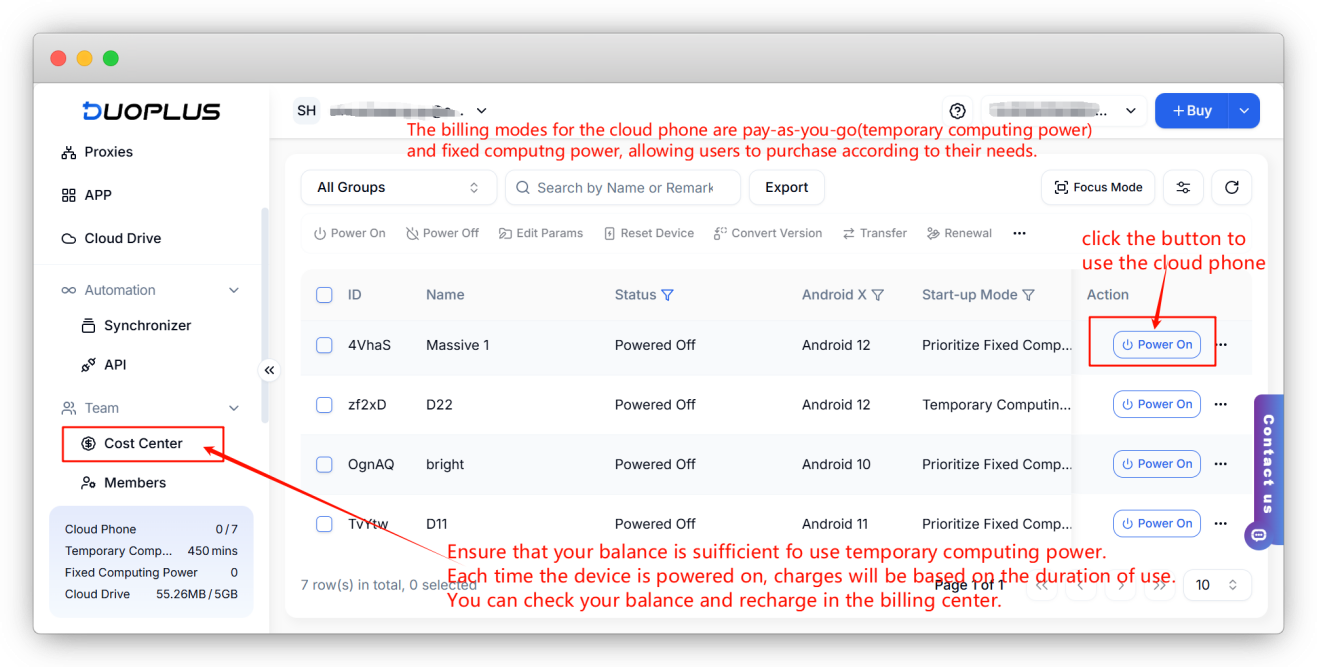
After clicking connect, wait a few seconds to complete the startup, and a new cloud phone will be generated. The cloud phone supports various functions: adjusting image quality, batch file upload, one-click new device, parameter modification, etc. Refer to the internal functions of the cloud phone for operations.
Frequently Asked Questions
Q1: Can DuoPlus be configured with an HTTP proxy?
Currently, DuoPlus Cloud Phone supports SOCKS5 proxies only.
Please copy the SOCKS5 port and corresponding authentication information from your OkkProxy dashboard.
Q2: What should I do if the proxy test fails?
Please check the following items first:
- Make sure the proxy type is set to SOCKS5.
- Make sure the host, port, username, and password are entered correctly.
- Check whether any extra spaces were included when copying the proxy information.
- Make sure your OkkProxy plan is still active.
- Make sure your current network environment can connect to DuoPlus normally.
Q3: How can I confirm that the proxy is working after the cloud phone is created?
After connecting to the cloud phone, open a browser inside the cloud phone and visit an IP detection website.
Check whether the displayed IP address and location match the proxy information provided by OkkProxy.