
ClonBrowser Proxy Configuration Guide
ClonBrowser is a professional fingerprint browser widely used for social media management and e-commerce operations. This tutorial will guide you on how to configure OkkProxy in ClonBrowser.
Prerequisites
- ClonBrowser client installed
- OkkProxy account with available proxy services
- Obtained proxy server address and authentication information
Configuration Steps
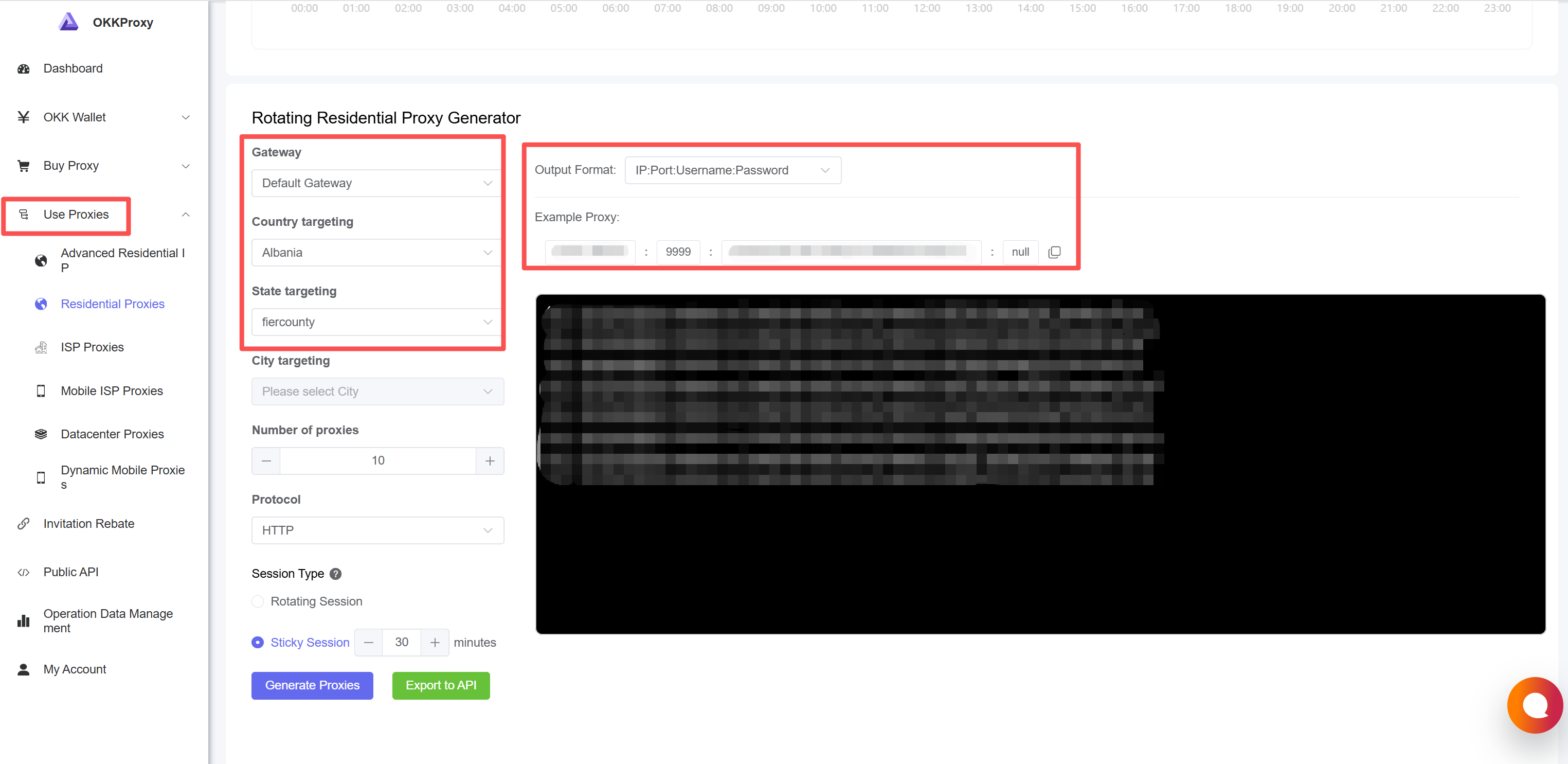
Step 1: Get Proxy Information
Log in to OkkProxy management panel and record the proxy server address, port, username, and password.
Step 2: Open ClonBrowser
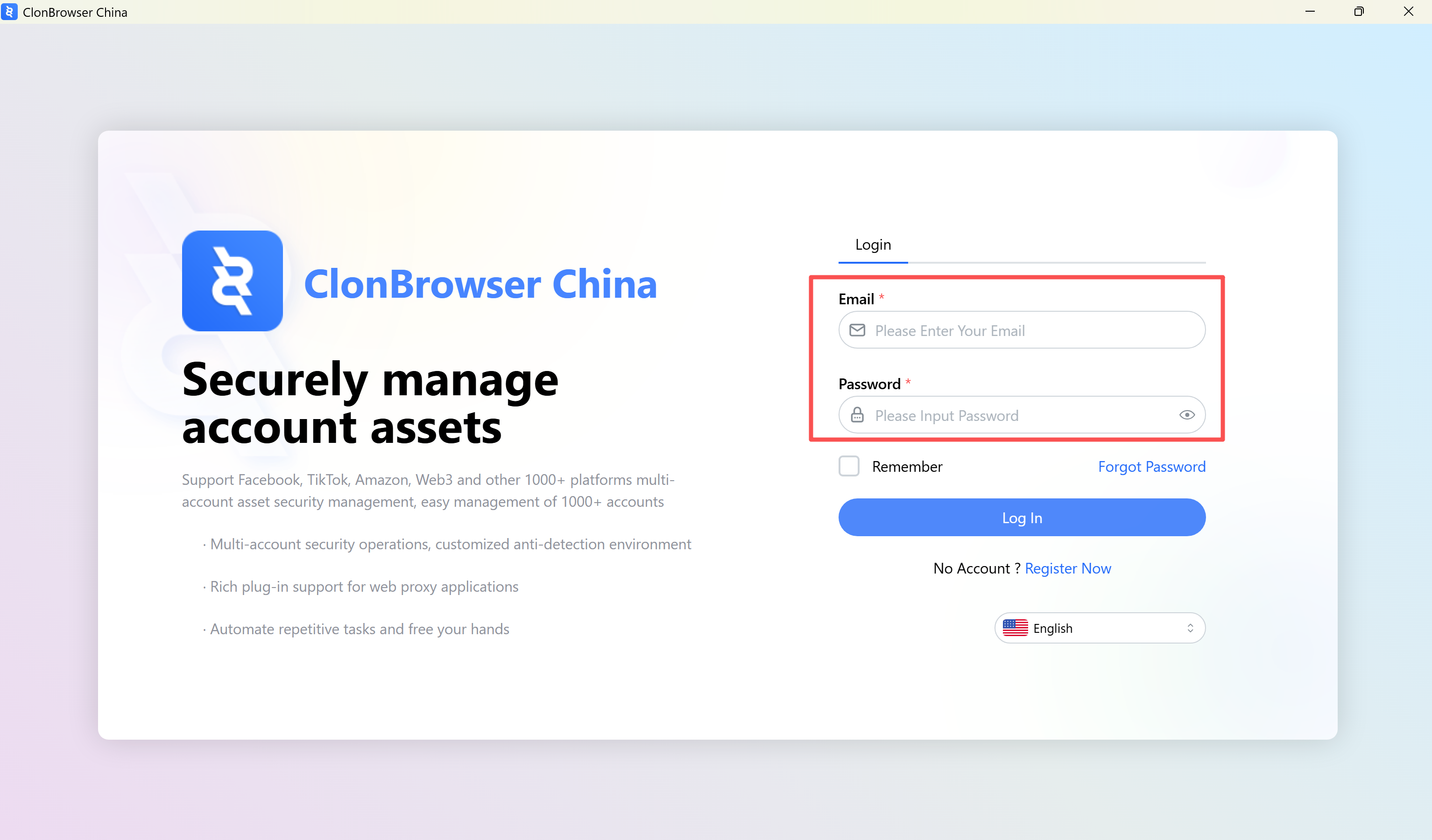
Launch ClonBrowser application(https://www.clonbrowser.com/)
Log in to your ClonBrowser account
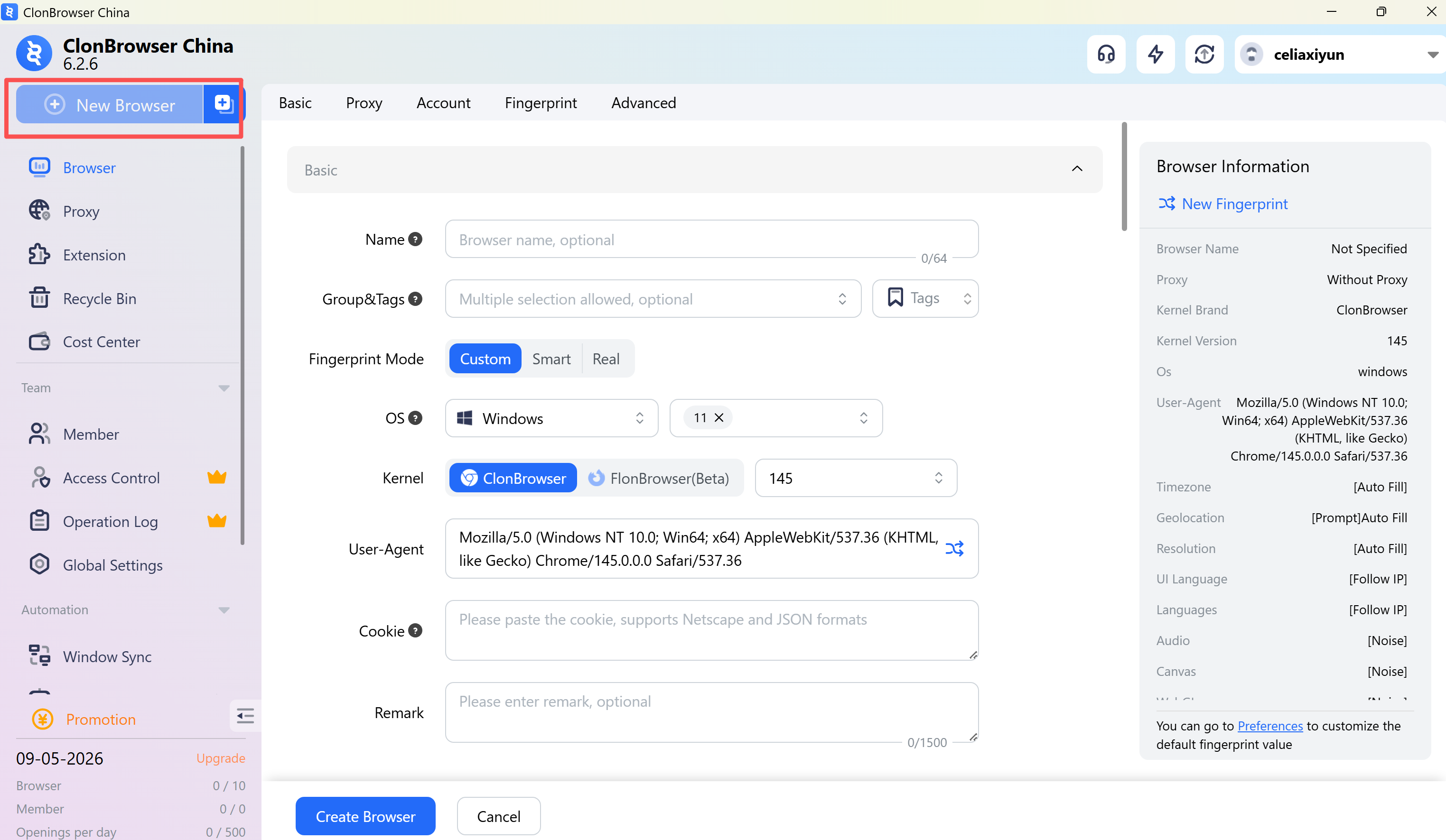
Step 3: Create New Browser Profile
Click the "New Browser" button or edit an existing browser profile.
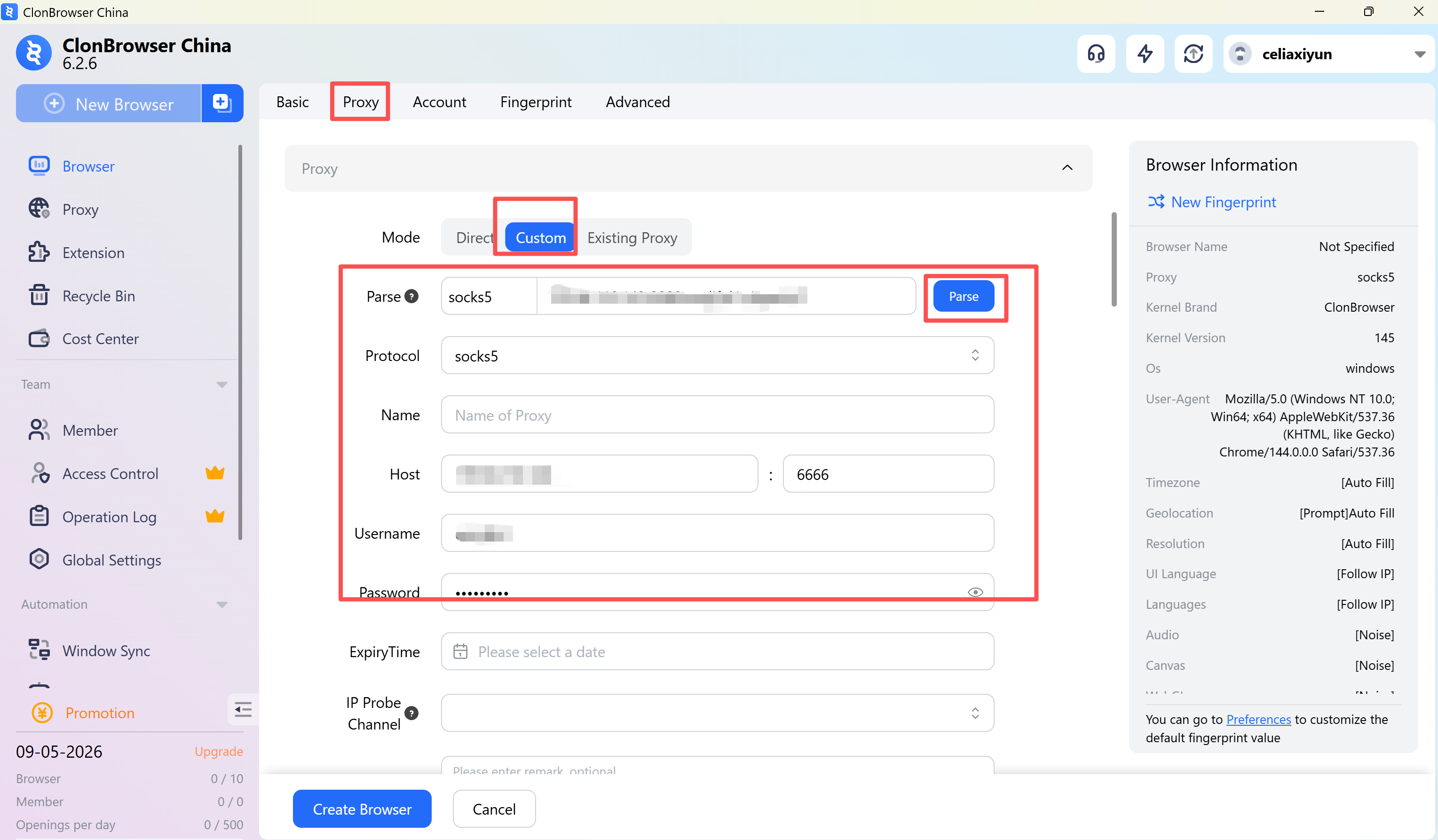
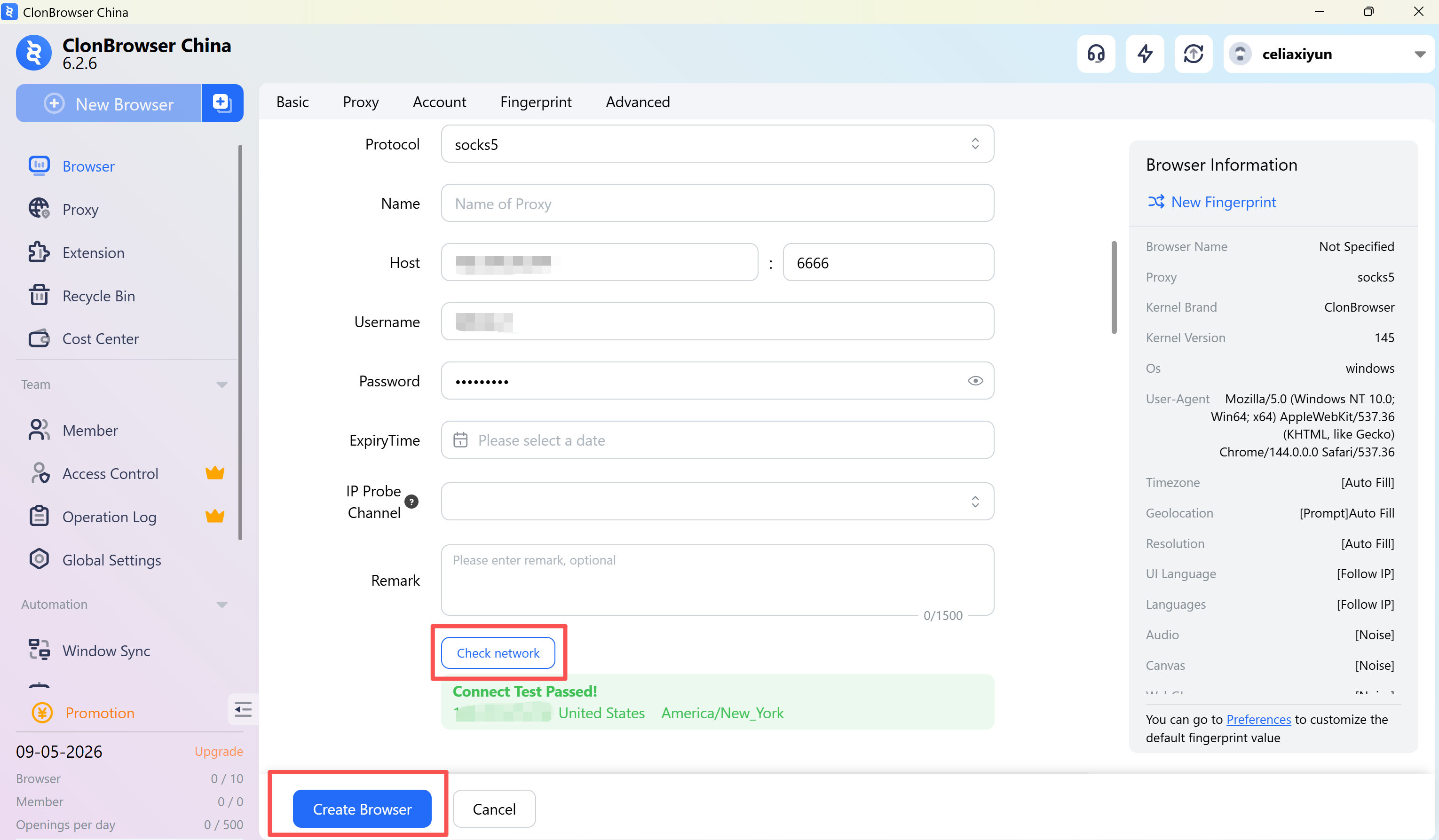
Step 4: Configure Proxy Settings
Find the "Proxy" tab in the browser configuration page
Select proxy type (HTTP/HTTPS/SOCKS5)
Fill in proxy information
Step 5: Test Proxy Connection
Click "Test Proxy" button
Confirm the displayed IP address is correct
Step 6: Save Configuration
- Confirm all settings are correct
- Click "Save" to complete configuration
Common Issue in China: Why can't I connect after adding a proxy IP in ClonBrowser?
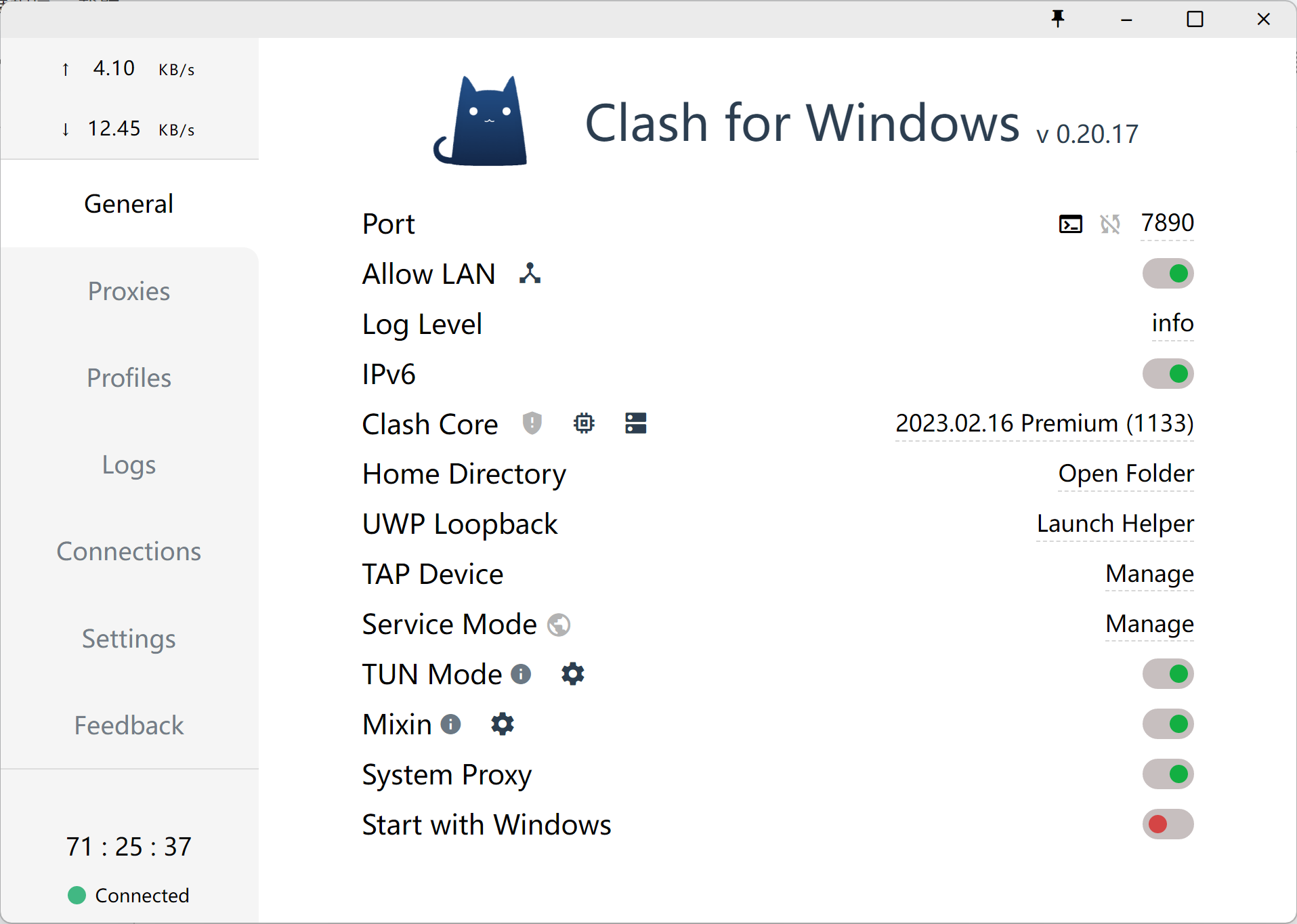
Please make sure you have enabled one of the following tools:
Clash
V2Ray
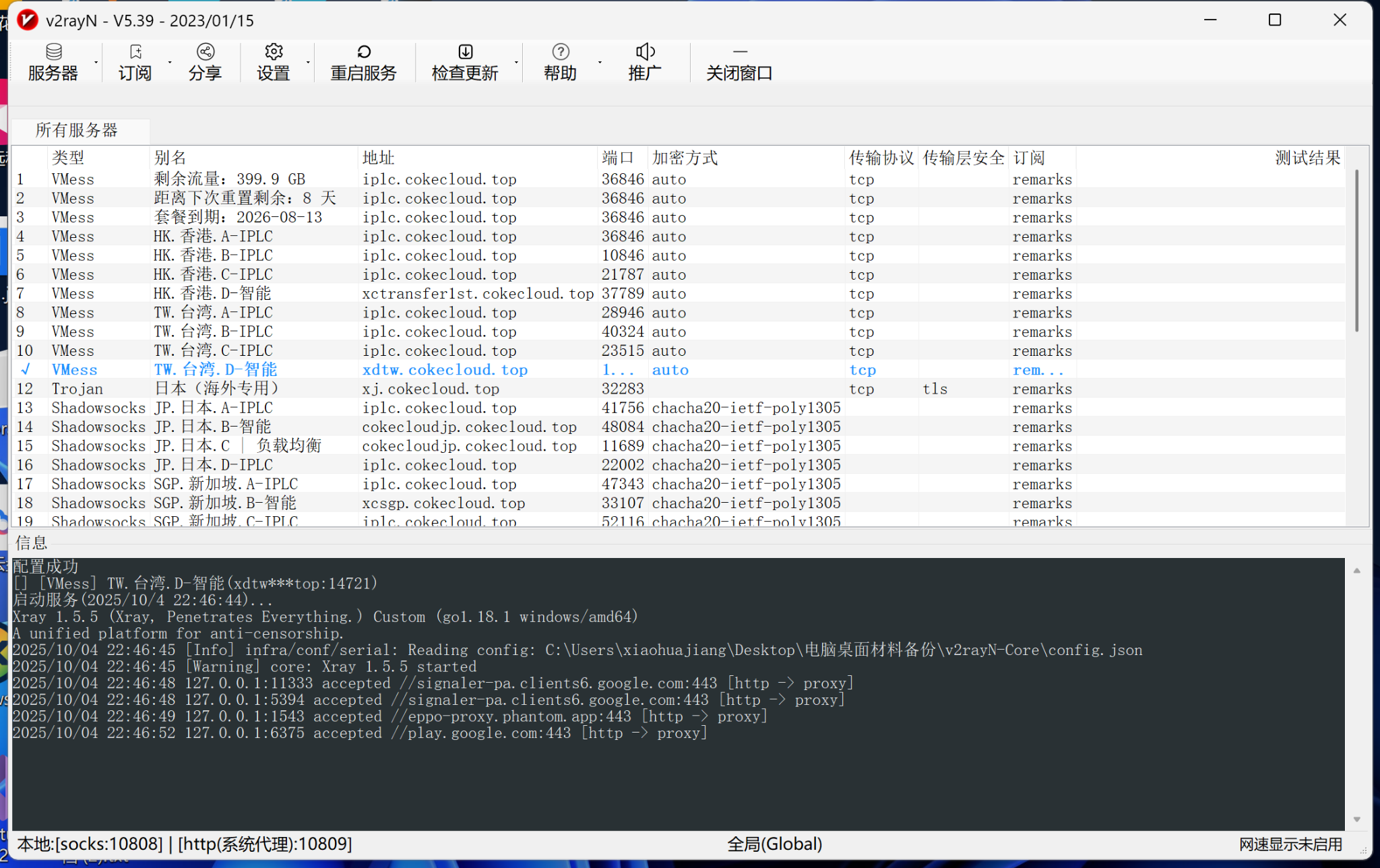
And ensure it is in a “connected” state.